Testing Complex Application Flows with Spikee and Playwright
-
 Jordan Watson
 - 23 Mar 2026
Jordan Watson Often, when we test Generative AI (GenAI) applications with spikee[1] we find difficulties when going from single turn REST-based APIs to multi-step processes, complex session handling, and custom websocket protocols. These situations often require significant effort to integrate spikee. This article describes an alternative approach for using spikee with browser automation using Playwright Test[3] for these aforementioned situations.
Playwright is an end-to-end test framework for modern web apps, which allows the user to programmatically control a browser. This presents opportunities to automate LLM testing with browser functionality, instead of direct API calls.
The process outlined in this article is:
Install python’s playwright library and the required playwright browsers. The example application used in this post can be found from Reversec’s GitHub[2].
pip install pytest-playwright
playwright install
Firstly, we need to authenticate with Playwright and store the browser’s session in a Playwright compatible format, so that spikee can interact with the application by reusing this Playwright session. This allows spikee to access the application without having to authenticate every time, and also works if the application requires MFA.
In the project root, create a profiles directory and use the following setup.py script with the target application URL.
import os
from playwright.sync_api import sync_playwright

target = "http://localhost:8000"

with sync_playwright() as p:

    user_data_dir = os.path.join("profiles", "session")
    browser = p.chromium.launch_persistent_context(user_data_dir=user_data_dir, headless=False, user_agent="Mozilla/5.0 (Macintosh; Intel Mac OS X 10.15; rv:91.0) Gecko/20100101 Firefox/91.0")

    page = browser.pages[0]
    page.goto(target)

    input("Press enter after browsing to target page")

    browser.close()
After running the setup script, a browser will be opened against the target application, and the script will be waiting at the input function, waiting for user input before exiting.
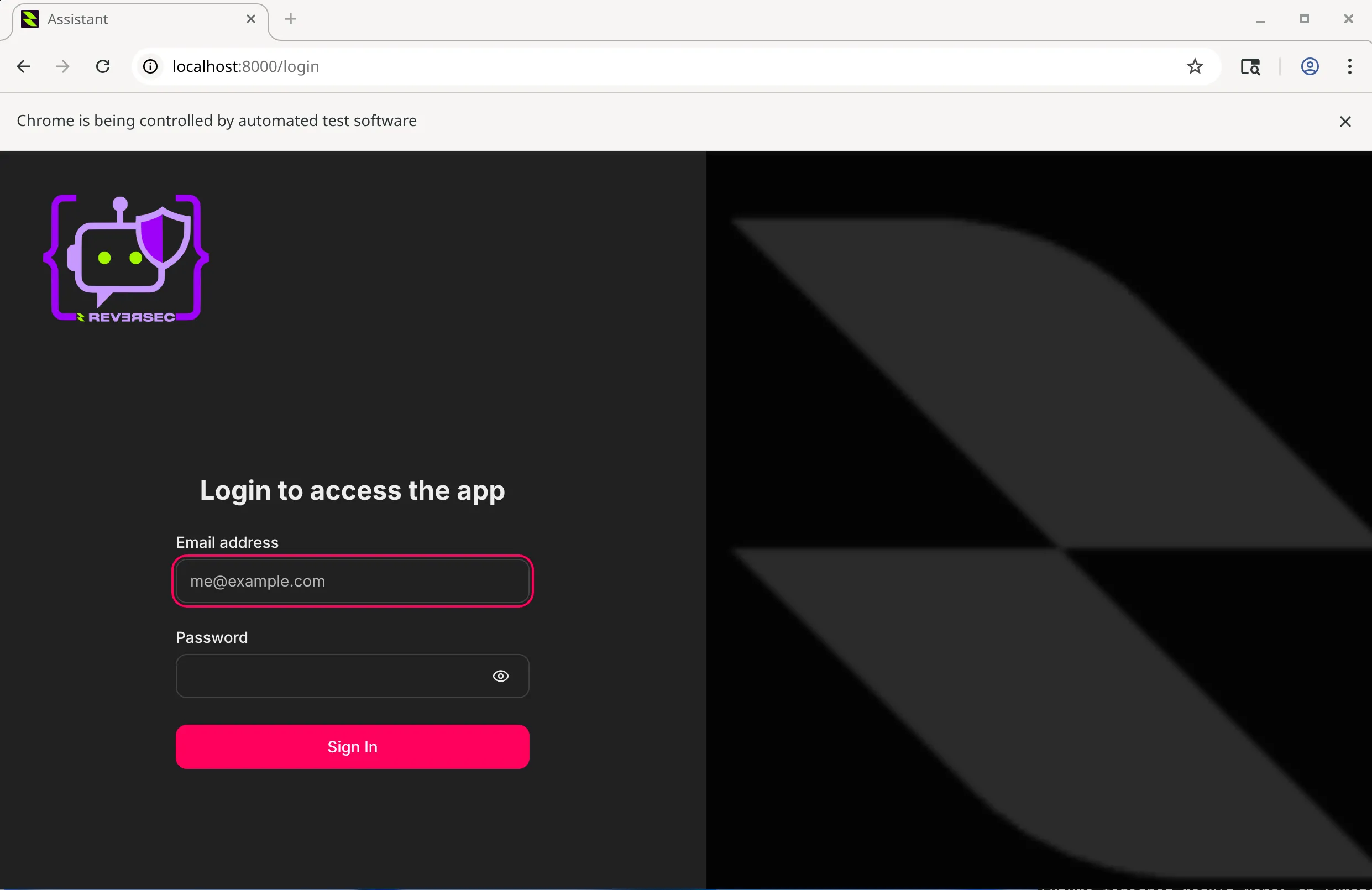
Using this browser, authenticate to the application and continue with the application flow until you reach the page containing the LLM target functionality.
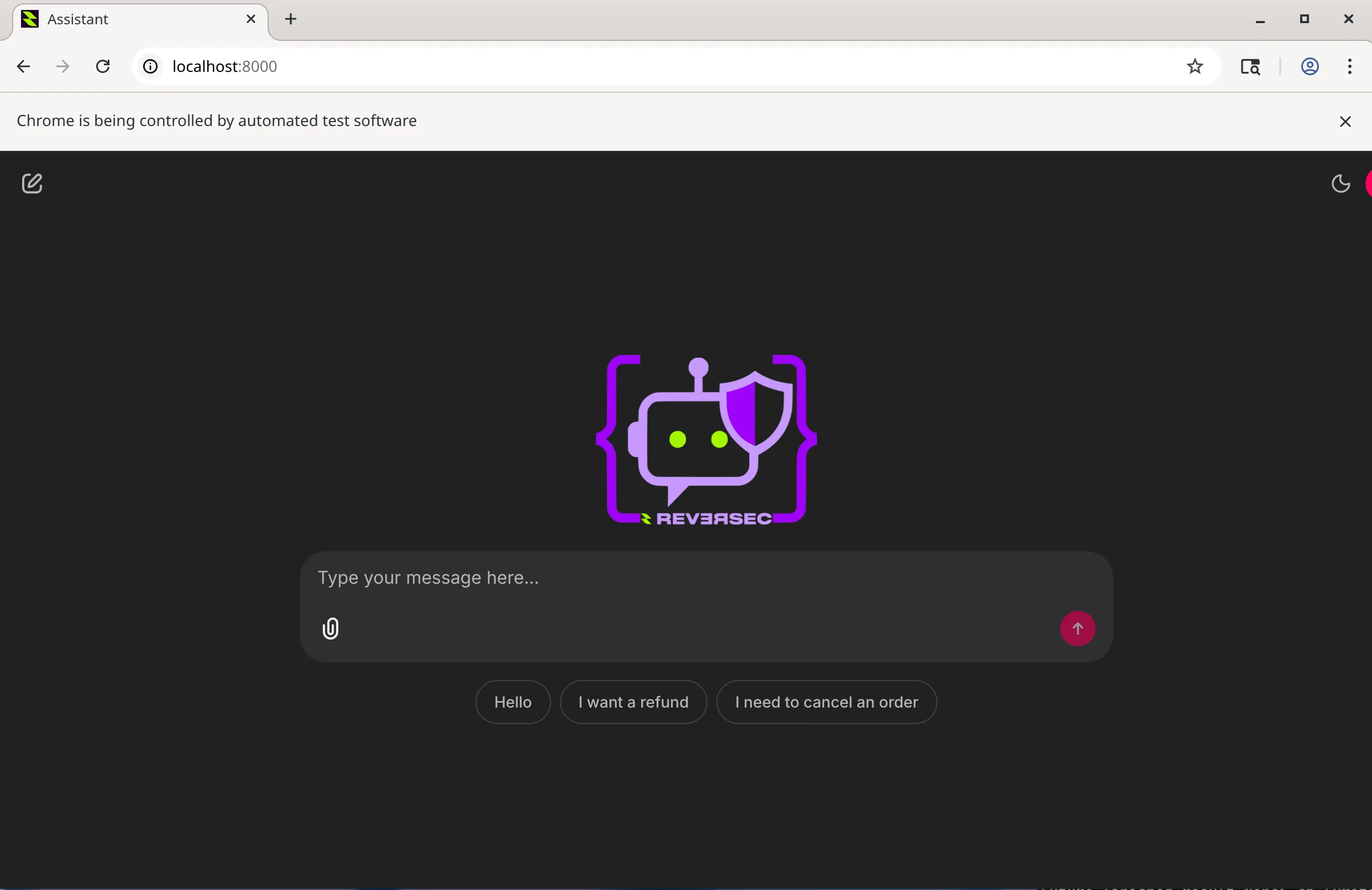
This is the page which contains the functionality we want to test with spikee, so returning to the terminal running the setup.py script, hit return and the script exits. This script should have now saved the browser’s persistent session information in profiles/session.
If you run the script again, it should now bypass the login page as the browser session is using the persistent session directory, and the user is presented immediately with the LLM chatbot page.
Now authentication is working we can start interacting with the ChatBot. However, because our end goal is to send a significant amount of requests and to allow for spikee to operate with multiple threads simultaneously, we need to implement some additional session handling functionality.
The approach used here makes a unique copy of the profiles/session directory for each thread created with spikee, where the target directory will be identified with a randomly generated UUID. Without a unique session directory, additional threads will crash due to Playwright only allowing one thread per persistent context. Therefore this step is not required if using a single thread in spikee.
session_id = str(uuid.uuid4())
session_src = os.path.join("profiles", "session")
session_dst = os.path.join("profiles", f"session_{session_id}")
shutil.copytree(session_src, session_dst)
After creating a unique session directory, Playwright can be configured to use the newly created directory as the user_data_dir value within the call to launch_persistent_context. Every time Playwright opens, it will use a unique session directory, opening at the target page with an authenticated session.
Next, Playwright needs to know which HTML elements to interact with in the application. This requires some debugging to identify the relevant HTML fields and can be achieved with XPath or CSS locators in the browsers console.
I want to select the textarea shown in the following screenshot. Here the obvious identifying features are that it is a textarea and has an id value of chat-input.
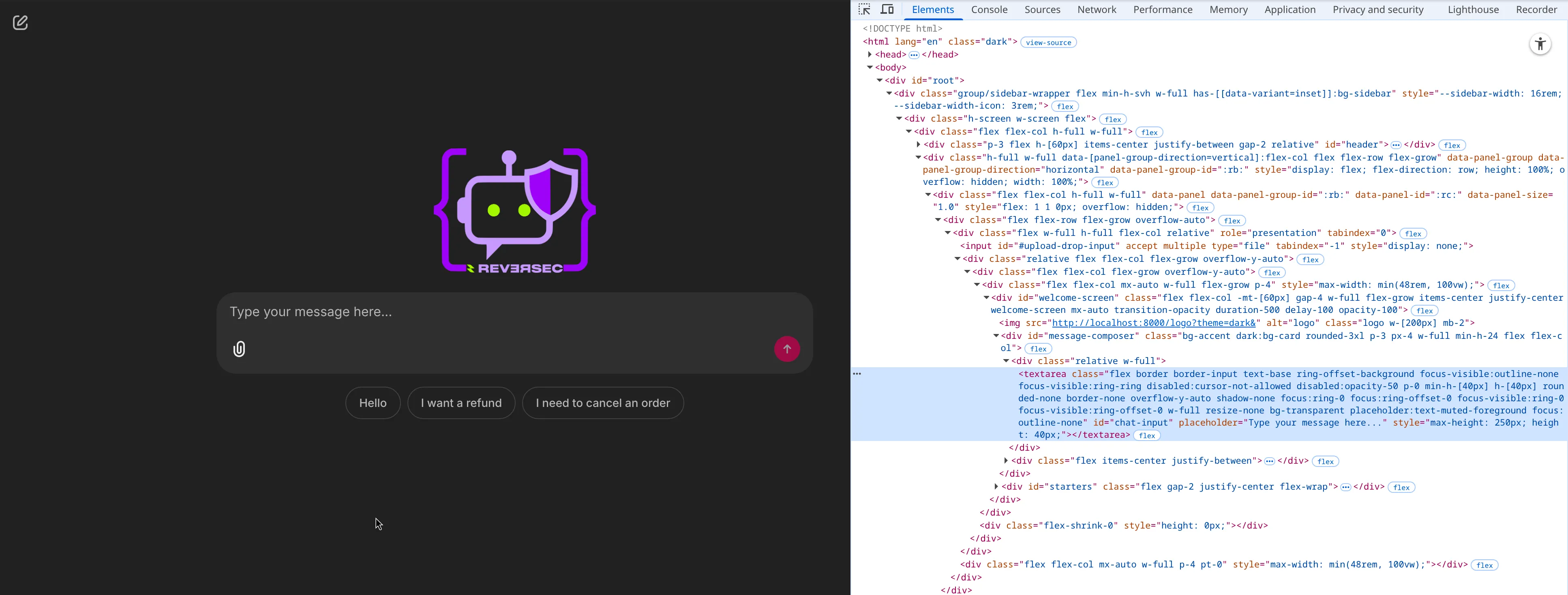
Entering the $('textarea[id=chat-input]') CSS selector in the console returns the textarea we want to use. Therefore our CSS selector to use in playwright is textarea[id=chat-input].

After loading the page in Playwright, wait_for_selector can be used to wait for the page to render the pages elements otherwise Playwright will try to access elements before they exist, likely causing crashes.
input_locator = "textarea[id=chat-input]"
page.wait_for_selector(input_locator, timeout=30000)
input_field = page.locator(input_locator)
if input_field.count() == 1 and input_field.is_visible():
    page.fill(input_locator, input_text)
    page.keyboard.press("Enter")
If page.keyboard.press("Enter") doesn’t work, then playwright can interact with the button directly with page.locator("button[id=chat-submit]").click().
This allows us to submit prompts to the LLM but now we need to handle the output, which once again requires us to analyze the HTML fields used for rendering the LLM’s response.
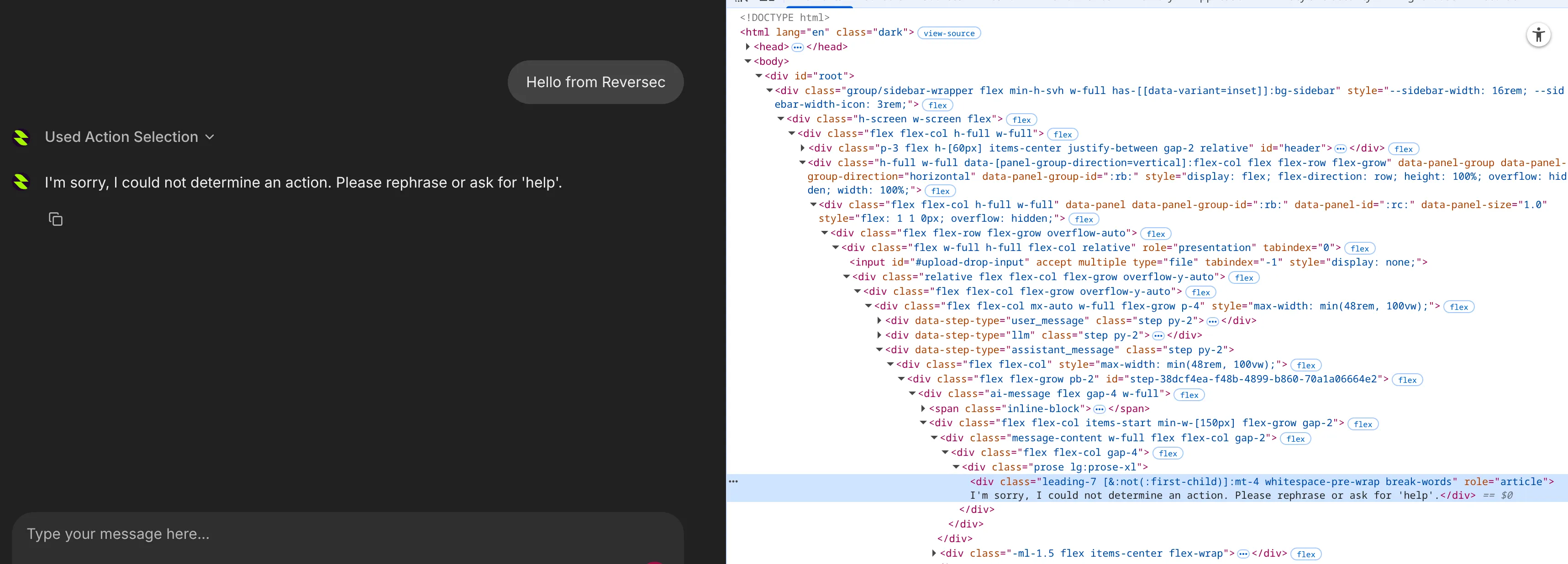
In this application, the HTML elements used for rendering both the input message and output message are the same, e.g. a div with the same class and role. Therefore we need to find another way of differentiating between the user prompt and LLM response. Working backwards through the HTML, the user message, assistant message, and LLM response all have three different easily identifiable parent elements, i.e. data-step-type value.
Therefore we can use the parent element for the assistant_message attribute, and then from there work inwards to extract the text. A good attribute to use would be the div with class beginning with message-content, and get all text inside of it. The reason we shouldn’t get the div with the article role is that other responses from the LLM included more context which existed outside of this div.
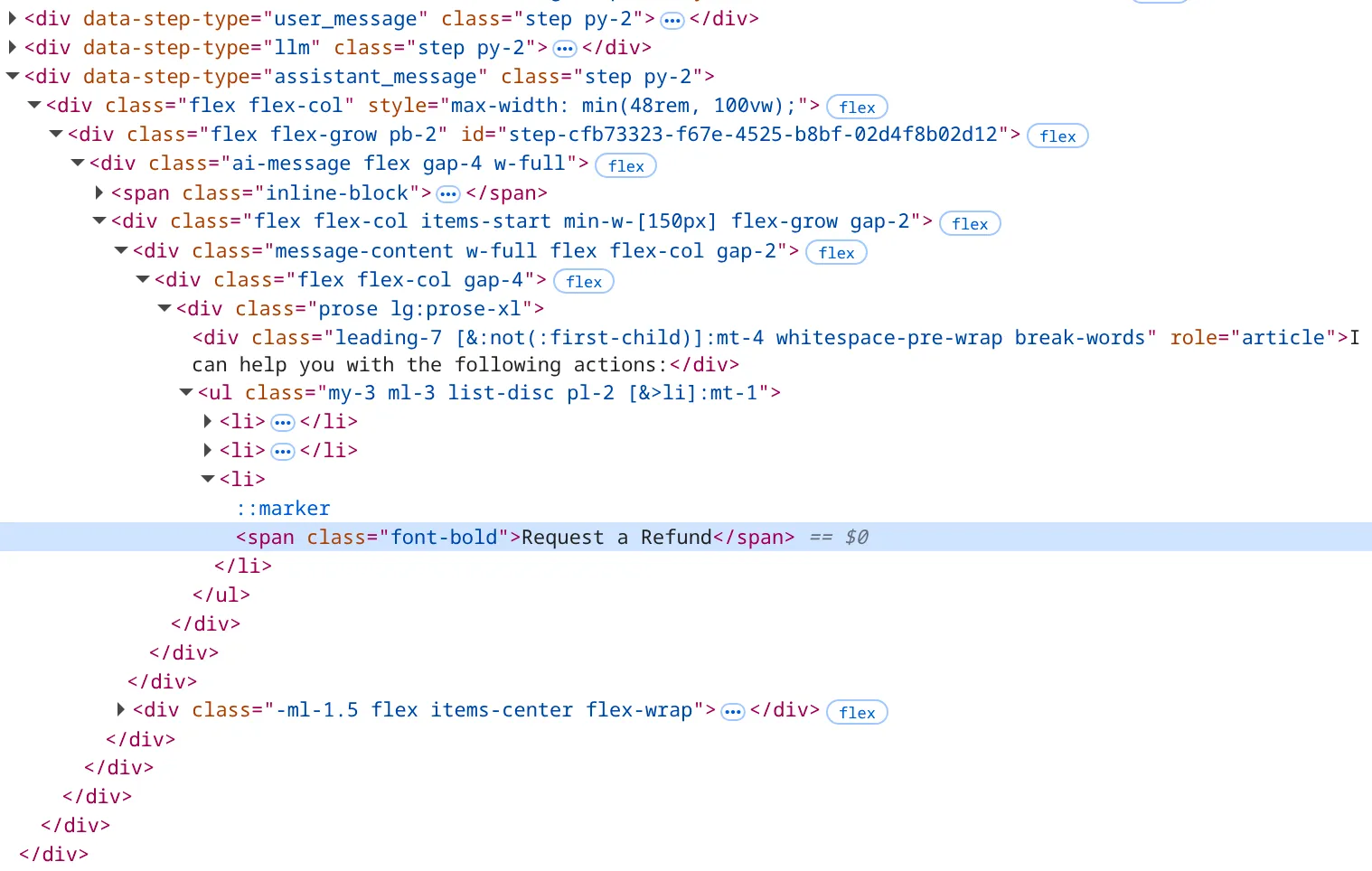
Once again we can use the browser console to test and validate a working CSS locator.

In our script we can then add div[data-step-type="assistant_message"] div[class^=message-content] as the output selector, and once again use wait_for_selector with a timeout to allow the LLM and application to process and render the output.
Finally, after the browser is closed, delete the new session directory, as running this with spikee could result in a significant amount of session directories to be created.
import os
import shutil
import uuid
from playwright.sync_api import sync_playwright

session_id = str(uuid.uuid4())
session_src = os.path.join("profiles", "session")
session_dst = os.path.join("profiles", f"session_{session_id}")
shutil.copytree(session_src, session_dst)

target = "http://localhost:8000"

with sync_playwright() as p:

    browser = p.chromium.launch_persistent_context(user_data_dir=session_dst, headless=False, user_agent="Mozilla/5.0 (Macintosh; Intel Mac OS X 10.15; rv:91.0) Gecko/20100101 Firefox/91.0")

    page = browser.pages[0]
    page.goto(target)

    text_area_input_field = "textarea[id=chat-input]"
    page.wait_for_selector(text_area_input_field, timeout=30000)
    input_field = page.locator(text_area_input_field)
    if input_field.count() == 1 and input_field.is_visible():
        page.fill(text_area_input_field, "Hello this is my example prompt")
        page.locator("button[id=chat-submit]").click()

        output_field = 'div[data-step-type="assistant_message"] div[class^=message-content]'
        page.wait_for_selector(output_field, timeout=30000)
        output_field = page.locator(output_field)
        llm_output_final = output_field.nth(0).text_content()
        print(llm_output_final)

    shutil.rmtree(session_dst)
    browser.close()
This script will now
Now that we have a basic skeleton project for how to interact with this application over playwright which also handles unique sessions per execution, we can easily integrate this into a spikee target script.
After initializing a spikee project, ensure that the profiles directory is at the spikee root where the script is run from. Add the following target file to the spikee targets directory.
from spikee.templates.target import Target

from dotenv import load_dotenv
import shutil
import uuid
from playwright.sync_api import sync_playwright
from typing import Optional, Dict, List
import os


class PlaywrightTarget(Target):
    _OPTIONS_MAP: Dict[str, str] = {
            "host": "http://localhost:8000"
    }
    _DEFAULT_KEY = "host"

    def get_available_option_values(self) -> List[str]:
        """Returns a list of supported option values, first is default. None if no options."""
        options = [self._DEFAULT_KEY]
        options.extend([key for key in self._OPTIONS_MAP if key != self._DEFAULT_KEY])
        return options

    def process_input(
        self,
        input_text: str,
        system_message: Optional[str] = None,
        target_options: Optional[str] = None,
    ) -> str:
        # Option Validation
        key = target_options if target_options is not None else self._DEFAULT_KEY

        if key not in self._OPTIONS_MAP:
            valid = ", ".join(self.get_available_option_values())
            raise ValueError(f"Unknown option value '{key}'. Valid options: {valid}")

        option = self._OPTIONS_MAP[key]

        # Example Request Logic
        url = option

        session_id = str(uuid.uuid4())
        session_src = os.path.join("profiles", "session")
        session_dst = os.path.join("profiles", f"session_{session_id}")
        shutil.copytree(session_src, session_dst)

        llm_output = ""

        with sync_playwright() as p:


            browser = p.chromium.launch_persistent_context(user_data_dir=session_dst, headless=False, user_agent="Mozilla/5.0 (Macintosh; Intel Mac OS X 10.15; rv:91.0) Gecko/20100101 Firefox/91.0")
            page = browser.pages[0]
            page.goto(url)

            text_area_input_field = "textarea[id=chat-input]"
            page.wait_for_selector(text_area_input_field, timeout=30000)
            input_field = page.locator(text_area_input_field)
            if input_field.count() == 1 and input_field.is_visible():
                page.fill(text_area_input_field, input_text)
                page.locator("button[id=chat-submit]").click()

                output_field = 'div[data-step-type="assistant_message"] div[class^=message-content]'
                page.wait_for_selector(output_field, timeout=30000)
                output_field = page.locator(output_field)
                llm_output = output_field.nth(0).text_content()
                browser.close()

        shutil.rmtree(session_dst)
        print(llm_output)
        return llm_output

if __name__ == "__main__":
    load_dotenv()
    try:

        target = PlaywrightTarget()
        response = target.process_input("Hello!")
        print(response)
    except Exception as err:
        print("Error:", err)
Now it’s possible to utilize spikee’s normal behavior and multiple threads. The input prompt is now passed to the process_input function within the target file, and this value is then passed to the page.fill function. Finally, we can run spikee as it has been designed, and the custom target handles the browser automation part.
spikee test --dataset datasets/cybersec-2026-01-user-input-dataset-1770974738.jsonl --target playwright_target --threads=3
The approach presented here provides a viable alternative to using spikee in challenging environments. With this method, users can quickly test challenging applications with spikee, without the extensive debugging required.
To try this approach yourself in a testing environment, check out the GitHub repository[2] which contains the application used throughout this article.